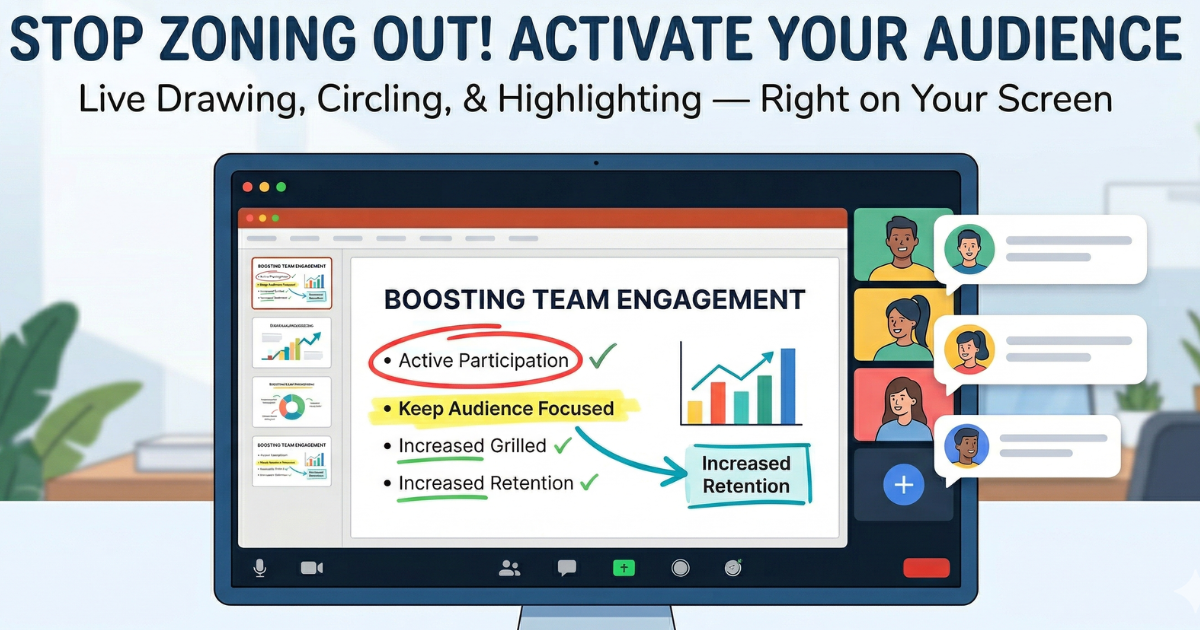
You're sharing your screen, walking through a slide or a document, and you can see your audience zoning out. Sound familiar? Drawing on screen is the simplest way to pull attention back — and it works in any app, on any call.
Why draw on screen?
Static slides and screen shares are passive. When you highlight, underline, or circle something live, your audience follows your hand — just like in a real classroom. It's immediate, visual, and impossible to ignore.
What you need
- A draw-on-screen tool — Smart Inkler works on Windows, macOS, and Linux. It draws over any application without interfering with it.
- Any input device — pen, mouse, touchscreen, or trackpad. All work out of the box.
- A screen sharing session — Zoom, Teams, Google Meet, or any other app. Smart Inkler's overlay is captured by all of them.
How to do it — step by step
- Launch Smart Inkler — open the app before your call. It sits quietly in the background until you need it.
- Start your screen share — share your entire screen (not just a window) for the best experience.
- Activate drawing mode — press the shortcut key or click the Smart Inkler icon. Your cursor turns into a pen.
- Annotate live — circle key points, underline text, draw arrows. Use colors and the highlighter for emphasis.
- Clear and continue — press the clear shortcut to wipe annotations and move to the next topic.
Tips for better presentations
- Less is more — don't annotate everything. Highlight only the most important point on each slide.
- Use colors with purpose — red for warnings, green for positives, yellow highlighter for key terms.
- Practice the shortcuts — the faster you switch between tools, the smoother your presentation feels.
- Clear often — a clean screen between topics keeps things organized and readable.
Start presenting better today
Drawing on screen turns a one-way presentation into a conversation. Your audience follows along, remembers more, and stays engaged. Download Smart Inkler and try it on your next call — it takes less than a minute to set up.